

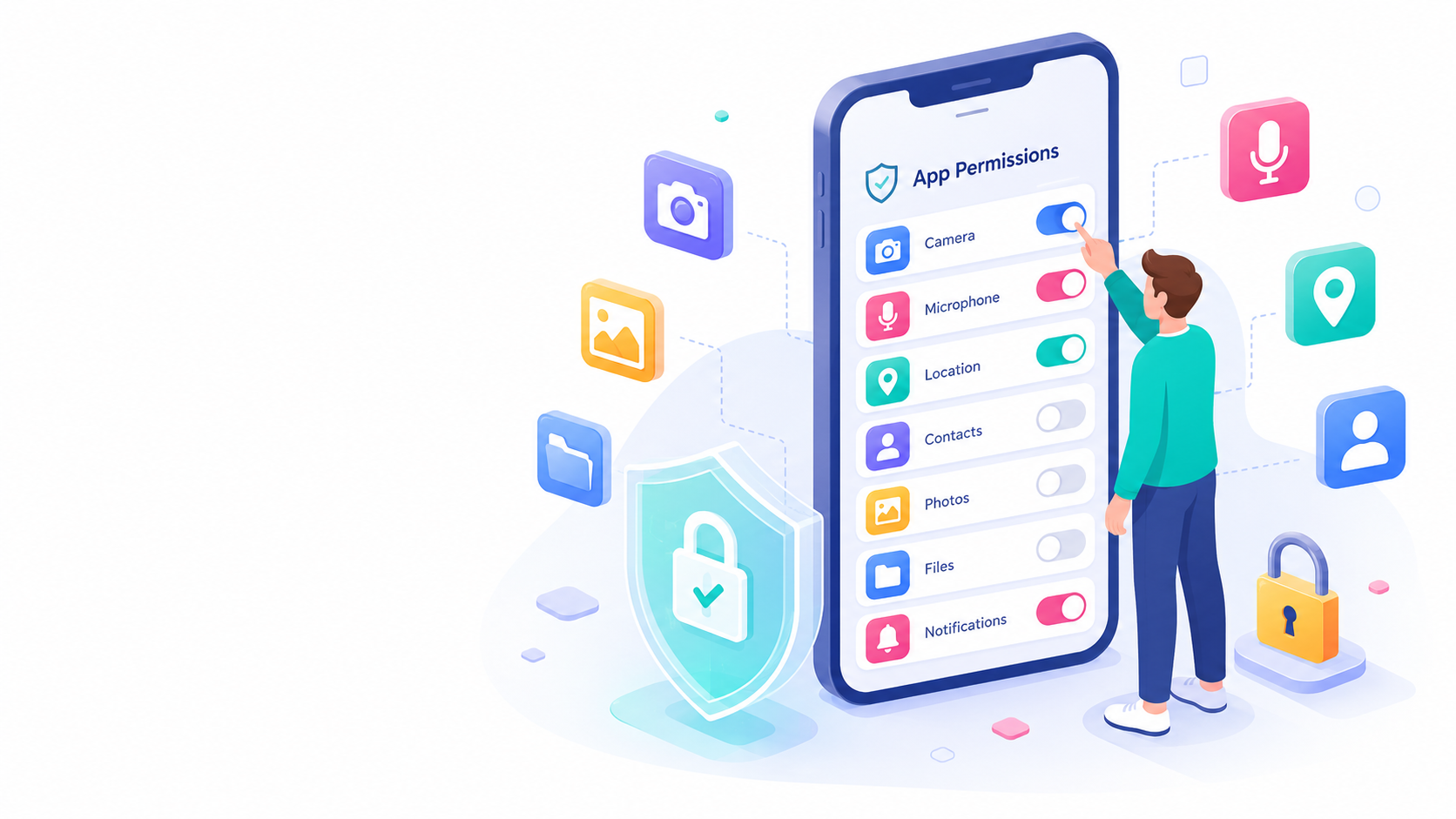
Every time you install a new app, it may ask for access to parts of your smartphone: camera, microphone, location, contacts, photos, files, notifications or other data.
Some permissions are necessary. A navigation app needs location. A video call app needs camera and microphone access. A photo editing app may need access to selected images.
But not every permission request makes sense. Giving apps too much access can affect your privacy, battery life and personal data security.
Quick Answer
Only allow permissions that match what the app actually does. If an app asks for access to your location, microphone, contacts, photos or messages, ask yourself: “Does this app really need that to work?” If the answer is no, deny the permission or choose a limited option.
What Are App Permissions?
App permissions control what an app can access on your phone. They help protect sensitive features and personal information.
Common permissions include:
- Camera: Allows an app to take photos or record video.
- Microphone: Allows an app to record audio.
- Location: Allows an app to know where you are.
- Contacts: Allows an app to access your address book.
- Photos and videos: Allows an app to view or use your media.
- Files: Allows access to stored documents or downloads.
- Notifications: Allows an app to send alerts.
- SMS or call logs: Allows access to messages or phone activity on some Android devices.
The exact permission names and options depend on your phone, operating system version and region.
Which Permissions Are Usually Safe?
A permission is usually safe when it clearly matches the app’s purpose.
For example, it makes sense for:
- a camera app to request camera access,
- a maps app to request location access,
- a messaging app to request microphone access for voice messages,
- a banking app to use the camera for ID verification or document scanning,
- a cloud storage app to access selected files or photos.
Even then, you should choose the least access needed. If an app only needs your location while you are using it, avoid giving it “always” access.
Which Permissions Should You Review Carefully?
Some permissions are more sensitive than others. Be careful with apps that request access to:
- location all the time,
- microphone in the background,
- all photos and videos,
- contacts,
- SMS messages,
- call logs,
- full file storage,
- accessibility features,
- notification content.
These permissions are not always bad, but they should have a clear reason. A flashlight app, wallpaper app or simple game usually does not need access to your contacts, messages or microphone.
Use Limited Access When Possible
Modern smartphones often let you choose more limited permission options.
For location, you may be able to allow access only while using the app. For photos, you may be able to share only selected images instead of your full library.
This is a good habit: give apps enough access to work, but not more than they need.
Review Permissions Regularly
Permissions are easy to forget after you grant them. Every few months, review your app permissions and remove access from apps you no longer use.
On iPhone, you can review permissions in Settings > Privacy & Security. Apple also offers App Privacy Report, which can show how apps use the permissions you granted.
On Android, you can review permissions in Settings > Apps > Permissions or through the Permission Manager. Android also allows you to pause app activity for unused apps, which can remove permissions automatically on supported devices.
Before Selling or Buying a Used Phone
If you are selling your phone, remove your accounts, back up your data and erase the device properly. If you are buying a used phone, check that the device has been reset and is not still linked to the previous owner’s accounts.
App permissions are personal. A second-hand phone should start clean, with no old apps, old accounts or old access settings left behind.
Bottom Line
App permissions are not something to accept automatically. They are small decisions about your privacy and security.
Before allowing access, ask whether the app really needs it. Use limited access when possible. Review permissions regularly. Delete apps you no longer trust or use.
A smartphone is more secure when every app has only the access it actually needs.
Sources:
Apple — Control access to information in apps on iPhone
Android — Change app permissions


Recent Comments