

Before selling your iPhone, protect the data you want to keep, collect useful device details, and remove your personal information. This guide covers an iPhone you can unlock; it does not bypass passwords or Activation Lock.
1. Back up or transfer your data
Open Settings > [your name] > iCloud > iCloud Backup > Back Up Now. Wait for completion and check the latest backup date.
iCloud synchronization is separate from backup. Verify that your photos, messages, notes, and passwords are available where expected. Do not manually delete synced content to clean the phone: those deletions can affect iCloud and other devices.
For a computer backup, use Apple Devices on Windows, or iTunes if Apple Devices is unavailable. On macOS Catalina or later, use Finder; older versions use iTunes. Encrypt computer backups to preserve Health and Activity data, and keep the backup password.
Quick Start can transfer data to another iPhone. For Android, follow the destination manufacturer’s instructions. Verify transferred data and essential app access before proceeding.
2. Record information for your buyer
Before signing out, note the model, capacity, and IMEI in Settings > General > About.
Under Settings > Battery, open Battery Health or Battery Health & Charging, depending on your model and iOS version, and record Maximum Capacity. Check Settings > General > AppleCare & Warranty for coverage details.
3. Run an optional IMEI check
Check your iPhone’s IMEI on IMEI.info for basic device information. Treat model specifications as supplementary: a free lookup should not replace checking your actual storage capacity or regional eSIM compatibility.
An optional carrier and Find My status report can help answer buyer questions. Check the current service details before ordering. Reports provide information, not unlocking, and cannot guarantee a device’s future status. Avoid posting your full IMEI publicly.
4. Sign out and prepare linked devices
After confirming access on your replacement phone, sign out of important apps, including banking and messaging apps.
Additional verified tip, not shown in the video: unpair an Apple Watch using the Watch app before erasing the iPhone.
Turn off Stolen Device Protection under Settings > Face ID (or Touch ID) & Passcode before selling. Biometric verification and an hour-long security delay may apply, so allow time.
Go to Settings > [your name] > Sign Out. On iOS 26 or later, choose Sign Out But Don’t Erase to follow the separate erase step below; signing out alone is not a wipe. On iOS 18, enter your Apple Account password and tap Turn Off. Follow any additional prompts in Apple’s instructions.
If switching to Android, deregister iMessage.
5. Erase the iPhone and remove your SIM
Go to Settings > General > Transfer or Reset iPhone > Erase All Content and Settings. Tap Continue and complete the requested authentication.
If you use eSIM, first confirm your number works on your replacement phone, then choose to erase the old phone’s eSIM when prompted. Deleting an eSIM does not cancel your mobile plan. Remove your physical SIM, if present.
Completing this authenticated on-device erase turns off Find My and Activation Lock. It does not remove a carrier lock.
6. Check before handing it over
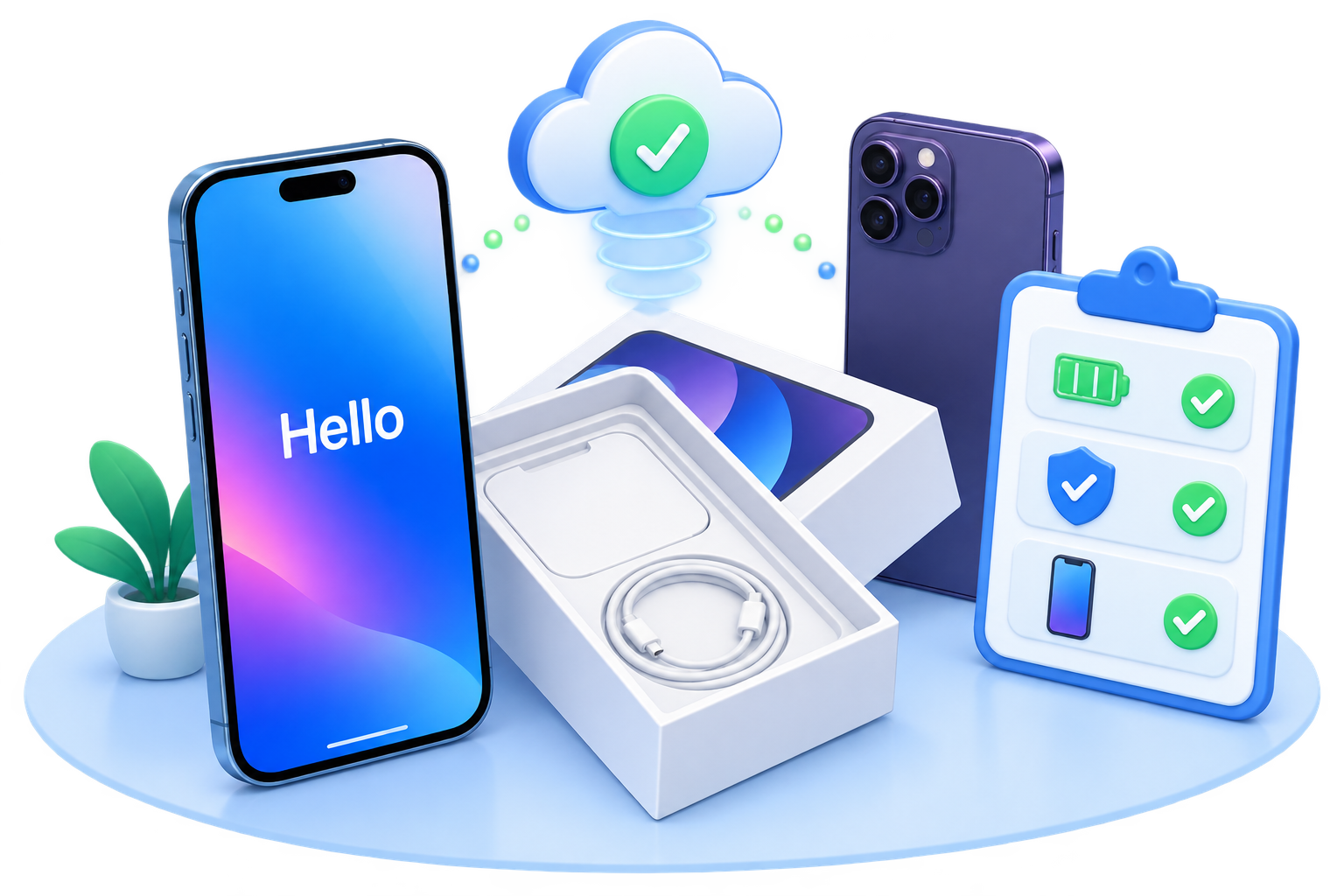
Confirm your data and phone service are preserved. Remove the old iPhone from your trusted devices, then leave it at Hello without signing back in. Hello alone does not prove every lock is absent: the buyer should confirm activation does not request your Apple Account.


Recent Comments